Upload a texture
Use a flat, evenly lit surface image. Shadows in a photo can be mistaken for grooves; painted color differences can be mistaken for surface relief.
Convert a texture image into normal, roughness, height and AO maps. Adjust the result, preview it on a 3D surface, and export separate PNG files in a ZIP.
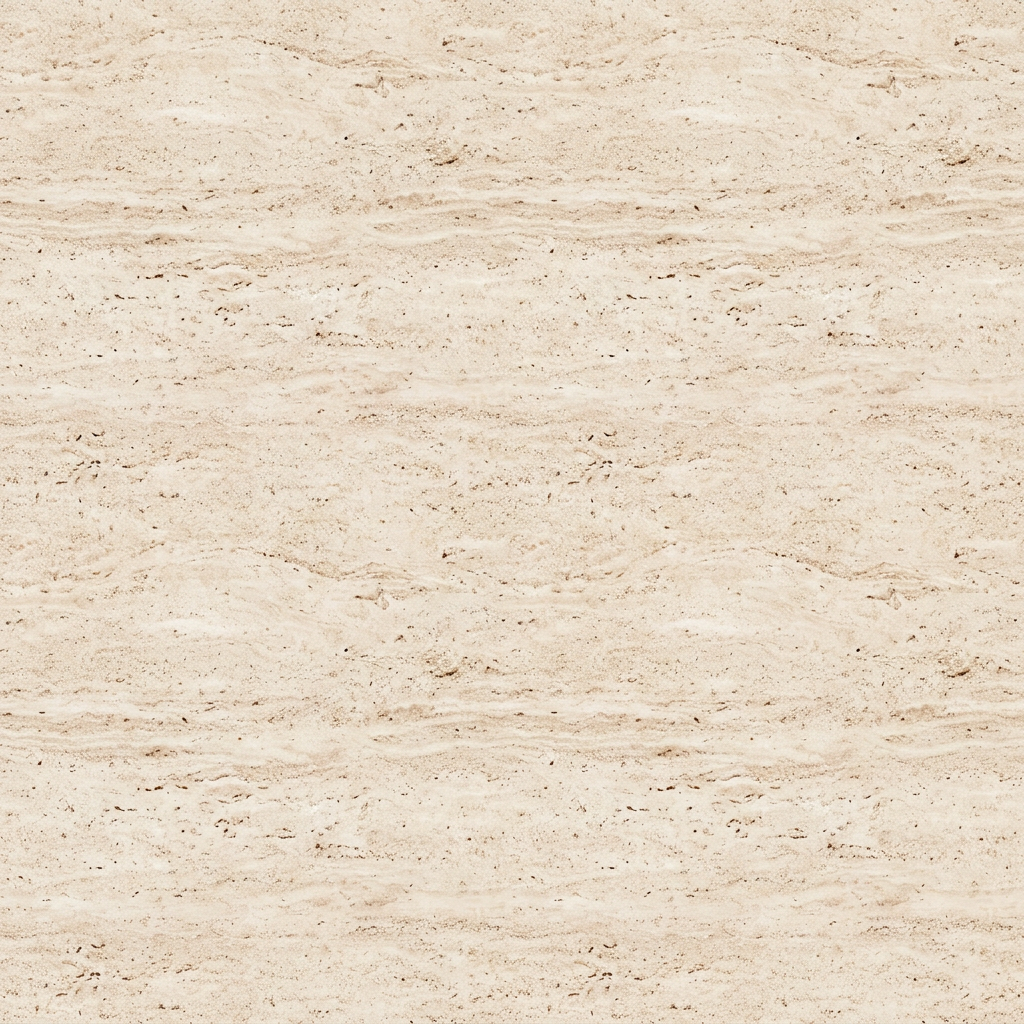
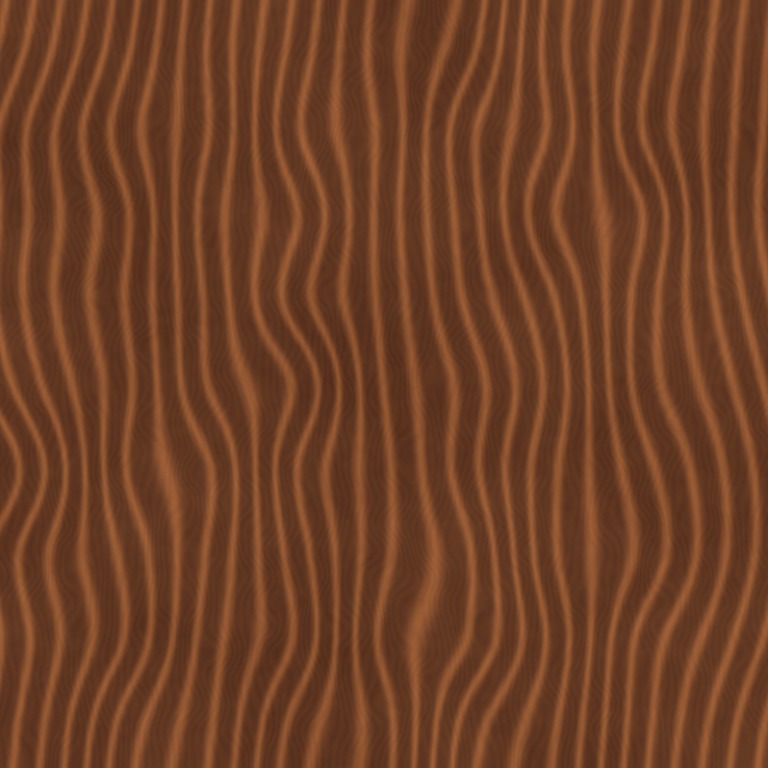
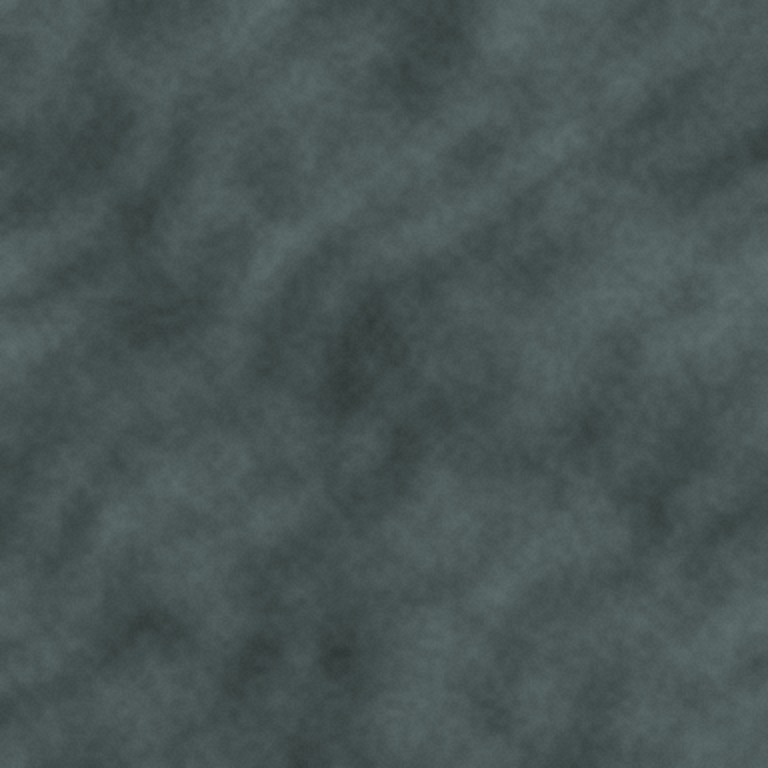
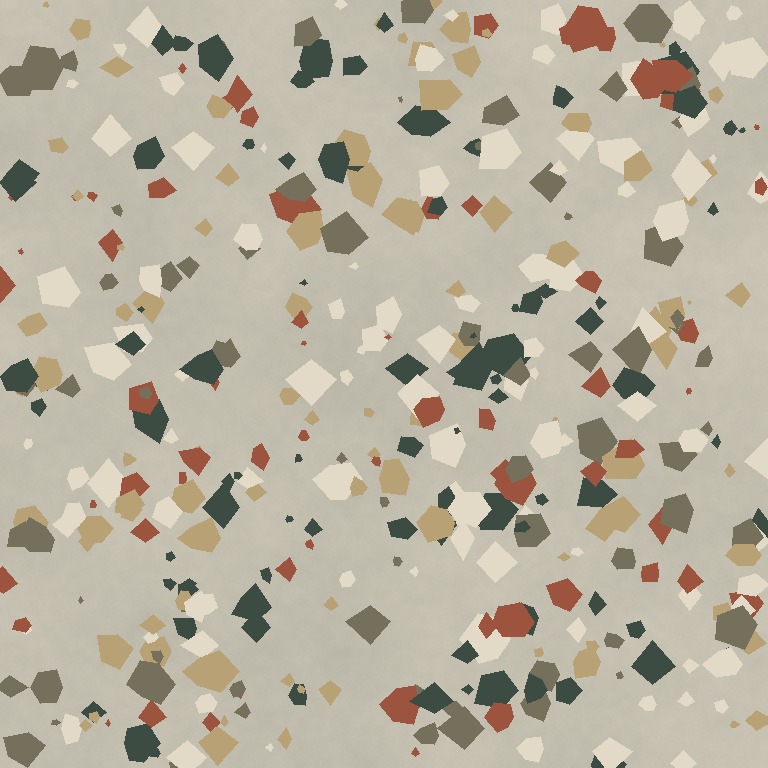 One surface. Five texture maps.
Upload a surface image to create base color, normal, roughness, height, and AO maps.
Existing AI-generated example · Maps processed on your device
Use a flat, evenly lit surface image. Shadows in a photo can be mistaken for grooves; painted color differences can be mistaken for surface relief.
Choose normal strength, roughness, height contrast and AO strength. Inspect each map separately and review the combined result on the material preview.
Download a ZIP with named PNG maps. Keep base color in a color space appropriate to your renderer; treat normal, roughness, height and AO as data when building a material.
PBR describes a shading workflow, not a file extension. A material usually combines several maps to describe color and how a surface responds to light. A single photograph cannot uniquely reveal its true geometry, roughness or reflectance.
This converter uses image luminance and local variation to estimate useful starting maps. Dark paint may become a false indentation. Glossy highlights can become false bumps. Adjust the strength and validate in your target renderer.
Base color preserves the processed surface image. The normal map describes local directions from an estimated height field. Height is a grayscale estimate; roughness controls the spread of reflections; AO estimates small local darkening.
This version does not derive a reliable metallic classification, create geometry, unwrap UVs, write a Blender material file, or build engine-specific channel packing. The ZIP contains separate PNGs so you can configure the material explicitly.
Upload the surface image here, inspect the automatically derived maps, adjust the material controls, and download the ZIP. The five maps are estimates from the image; inspect them under your scene lighting before using them.
The map conversion uses local image-processing algorithms, not an AI model or a physical scan. You can process an AI-generated image, but text-to-texture generation is not yet open on the public site.
The tool exports standard PNG texture maps. Each application needs its own shader connections, normal convention and color-space settings. Texel does not export a native material project or configure your engine automatically.
Images selected for map conversion stay in your browser. The public image tools do not send your images to a server or AI provider.
Describe a material, then make it your own.