Image to PBR Maps: A Practical Workflow
An image-to-PBR converter can give you editable material maps quickly. It cannot recover a surface’s true physical properties from a photograph. Treat the output as a starting point, then judge it under the lighting and scale of your actual scene.
1. Choose a source that describes the surface
Start with a front-facing surface image under even light. Avoid a strong cast shadow, a bright reflection, perspective distortion or a large object crossing the frame. Those features become part of the image and can influence every derived map.
Decide which crop you need before conversion. Check the working image and output dimensions in the tool. Keep the original separately: resizing, border blending and map adjustments should not become your only remaining copy.
2. Understand the five files
Texel derives maps with browser image processing. Brightness and nearby pixel differences provide useful cues, but dark paint is not necessarily a cavity and a white mark is not necessarily raised.
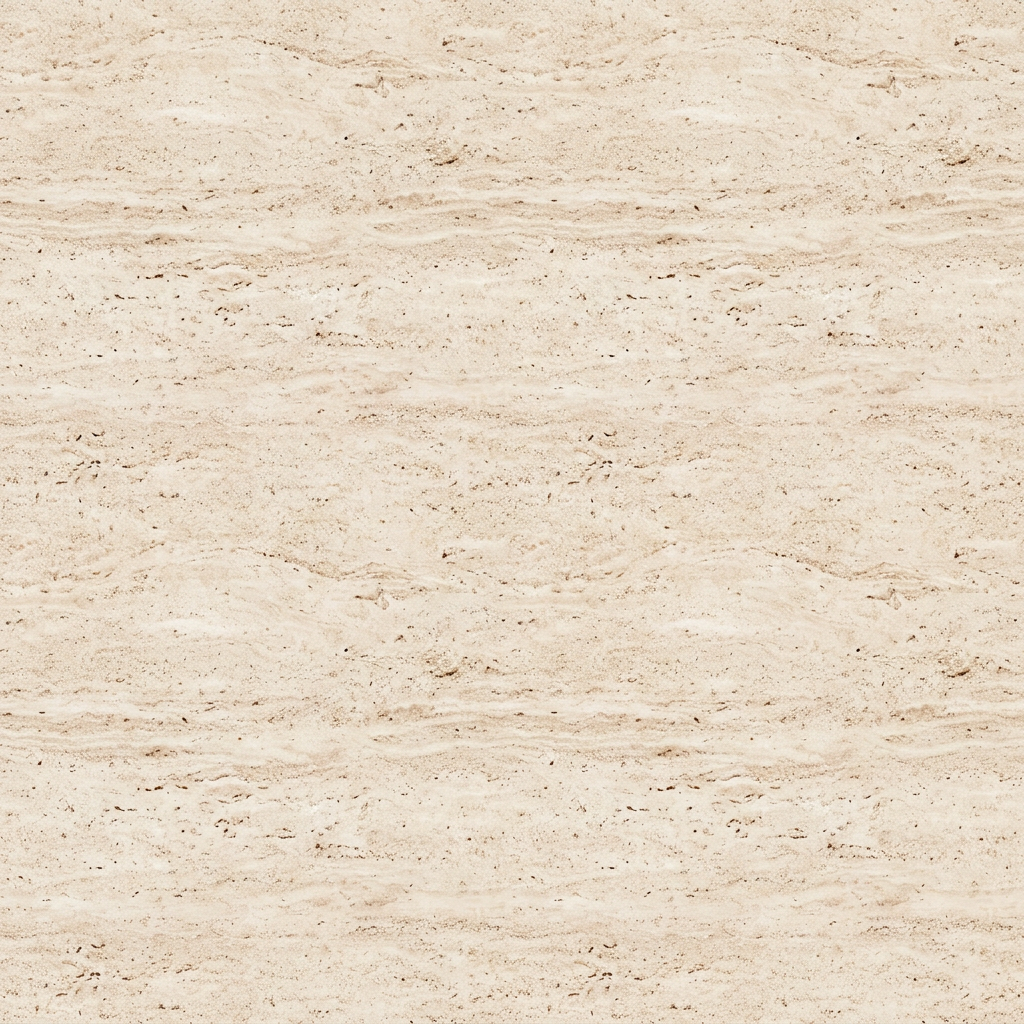
- Base color carries the processed surface image. It can still contain lighting from the source; conversion does not automatically remove it.
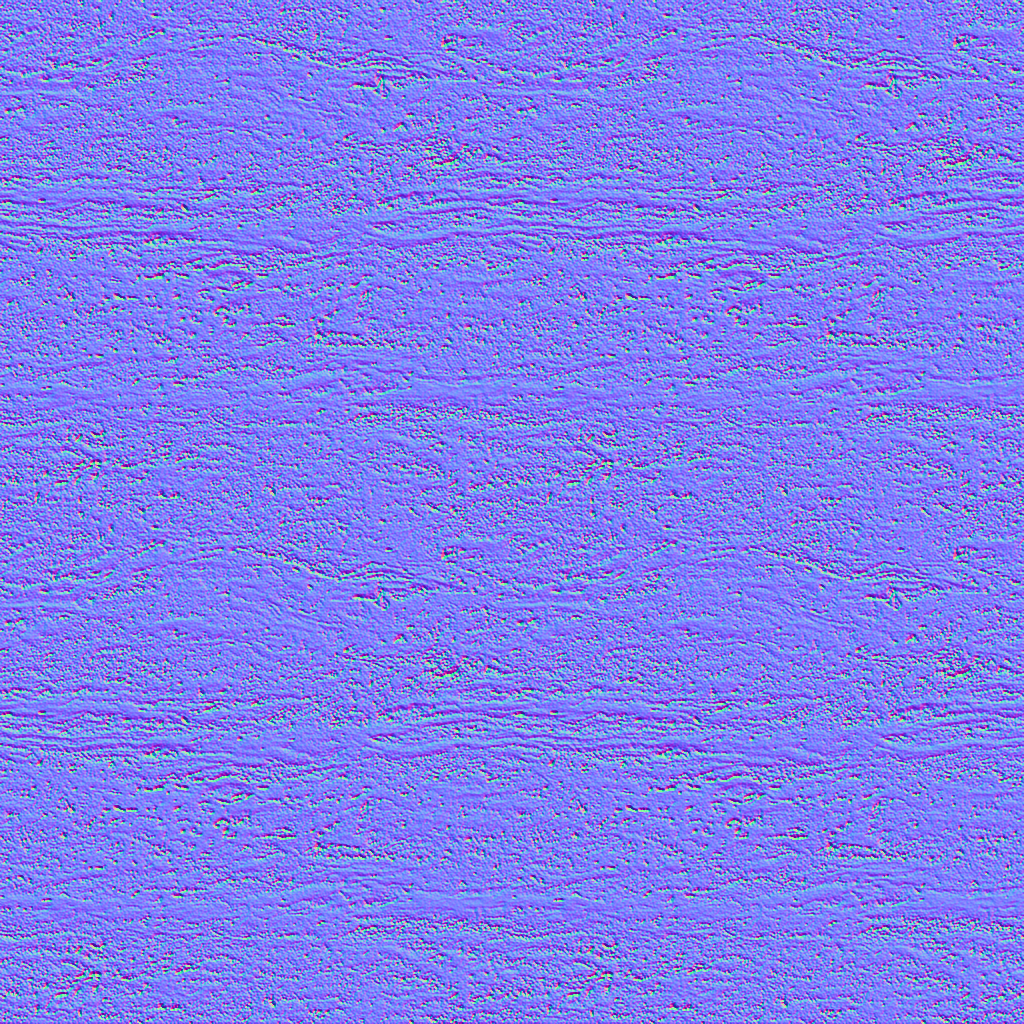
- Normal encodes local surface directions estimated from height. Choose the green-channel convention required by your material setup.
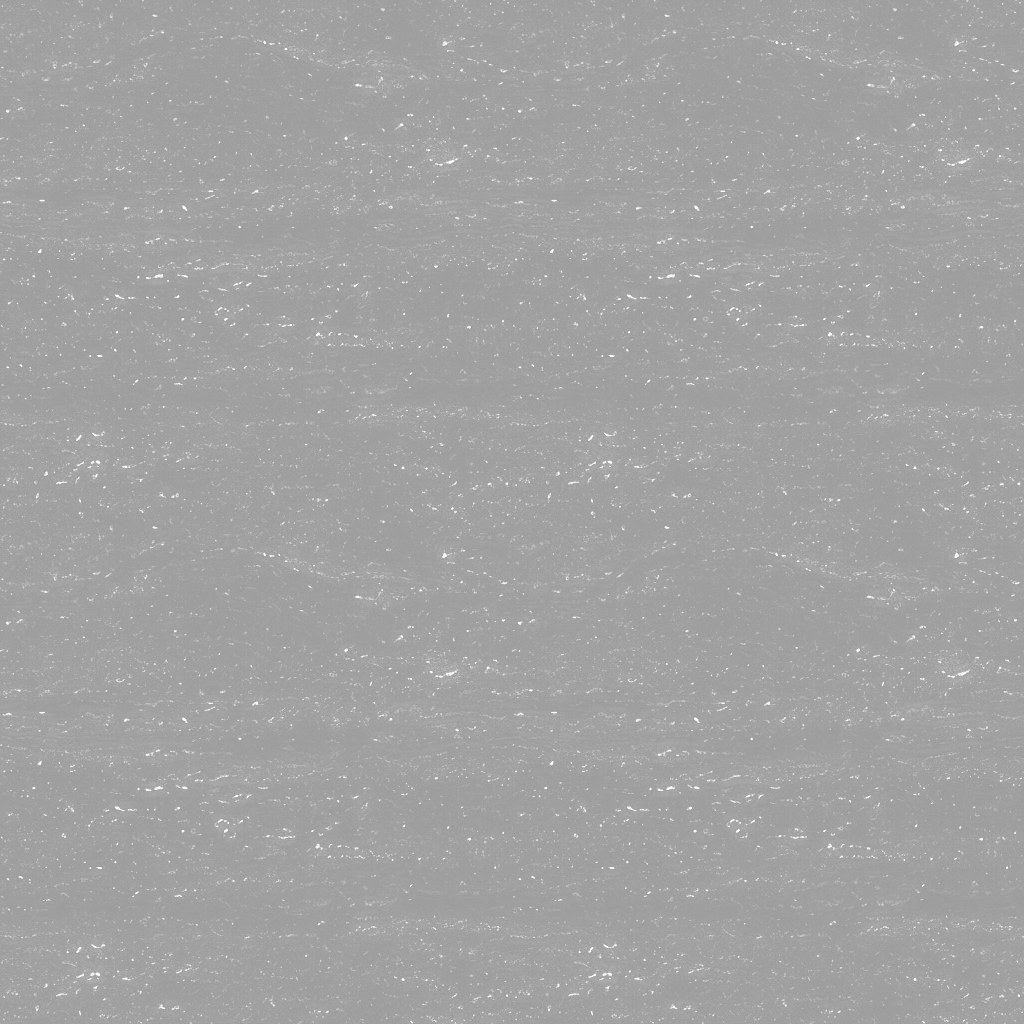
- Roughness estimates variation in the spread of reflections. Inspect it independently; a colorful pattern need not have varying roughness.
- Height is a grayscale relief estimate. It is not a scan or a measurement of depth in millimeters.
- Ambient occlusion estimates local darkening. It does not know the surrounding scene or replace its lighting.
3. Adjust in an order you can diagnose
First decide whether the base image needs seam blending. Check its repeat before judging small surface details. Then set height contrast and raise normal strength gradually. Excessive strength can turn subtle grain into sharp ridges.
Adjust roughness and AO last. Compare each map with the combined material preview, changing one control at a time. If a painted mark keeps becoming a bump, edit the source or use a prepared height image; stronger settings will reinforce the mistake.
4. Connect maps deliberately
In Blender, route a tangent-space normal texture through a Normal Map node and set that image to Non-Color. Its UV mapping must agree with the material. Blender’s displacement documentation also distinguishes bump shading from actual displacement, which needs suitable mesh subdivision.
Check the exact shader before importing into a game engine. Unity’s URP Lit shader uses smoothness and supports specific packed channels; a separate roughness PNG is not a ready-made packed texture. Unreal exposes roughness and metallic as distinct material inputs. Texel does not supply a metallic map or assemble these engine materials.
5. Validate the exported result
Download the individual PNGs or ZIP, reopen the files and confirm their dimensions. Keep their UV scale aligned. Test them on the intended mesh under more than one light direction, including the distance at which players or viewers will see it.
Record the source, settings and normal convention alongside the files. The export contains images, not automatic UVs, a native Blender file or a guarantee of production readiness. For close-up displacement, review precision requirements: Blender notes that 16- or 32-bit displacement images preserve more detail than 8-bit images.
A RECORDED TEXTURE WORKFLOW
One prompt. One surface. Five inspectable maps.
This pale travertine image was generated on October 25, 2026 with Nano Banana 2 via Kie. The map set below was then exported from Texel. Download the actual files and judge the result for your own scene.
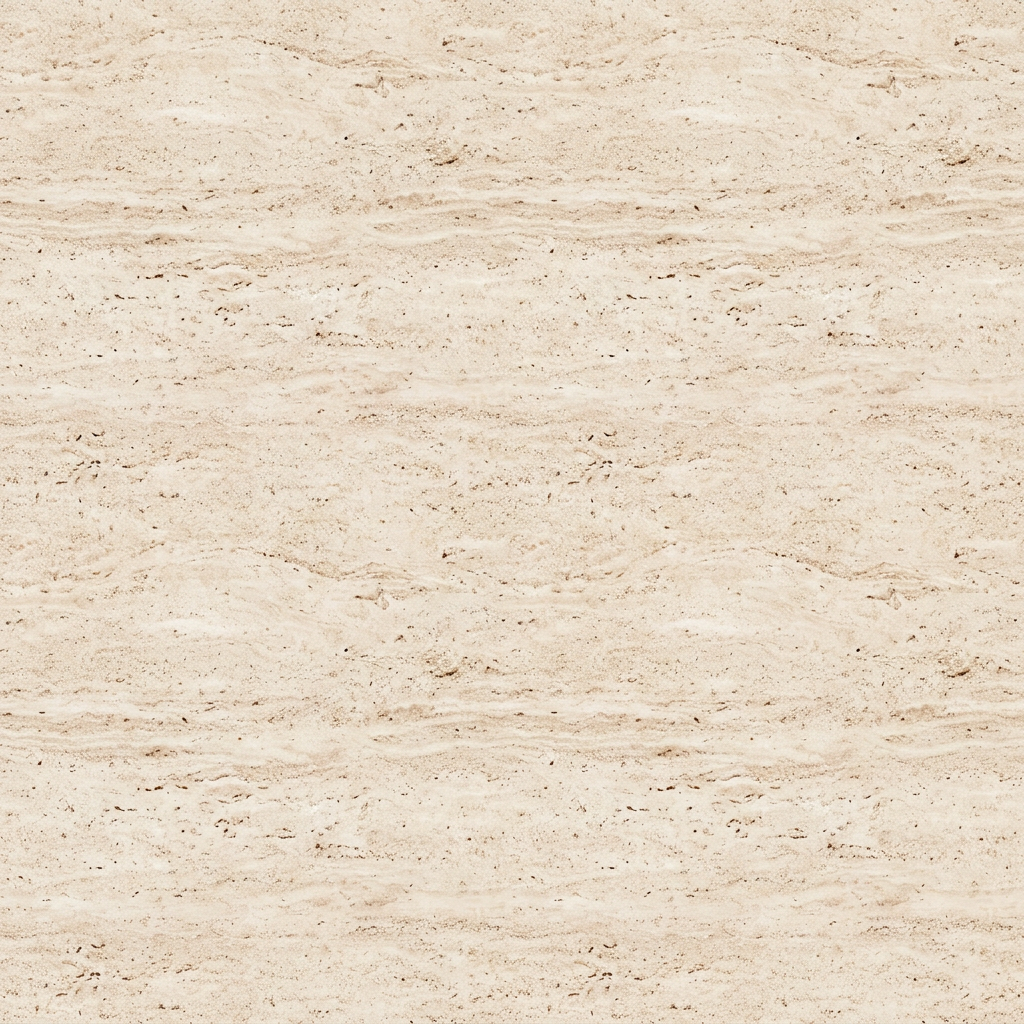
The prompt used
Pale warm travertine limestone, fine irregular pores and subtle horizontal mineral bands, matte natural stone, even neutral lighting, orthographic surface scan, no objects, no shadows, seamless repeating material
“Seamless” was part of the request. That wording does not establish that the returned image tiles cleanly.
Download the original source PNG ↗The exported maps
All five files are 1024 × 1024 PNGs. These resized previews link to the original exports.
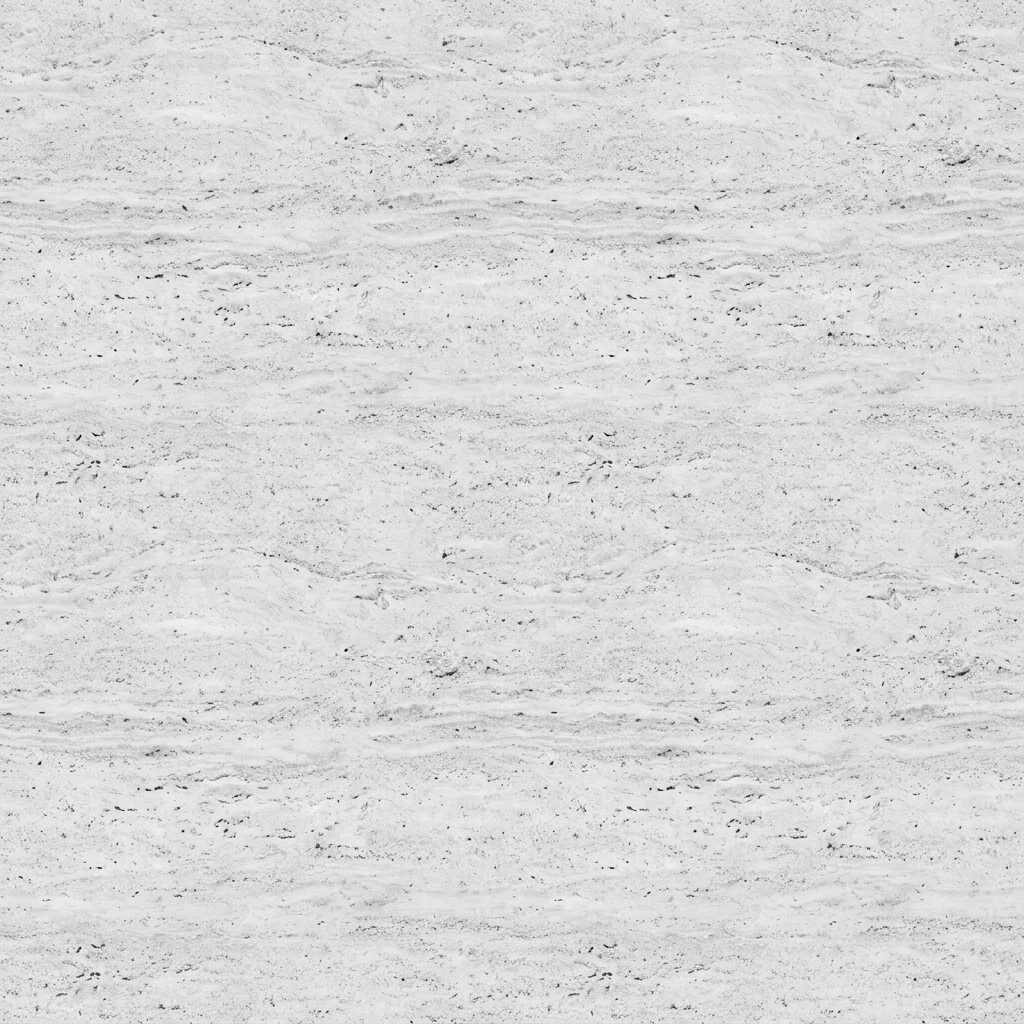
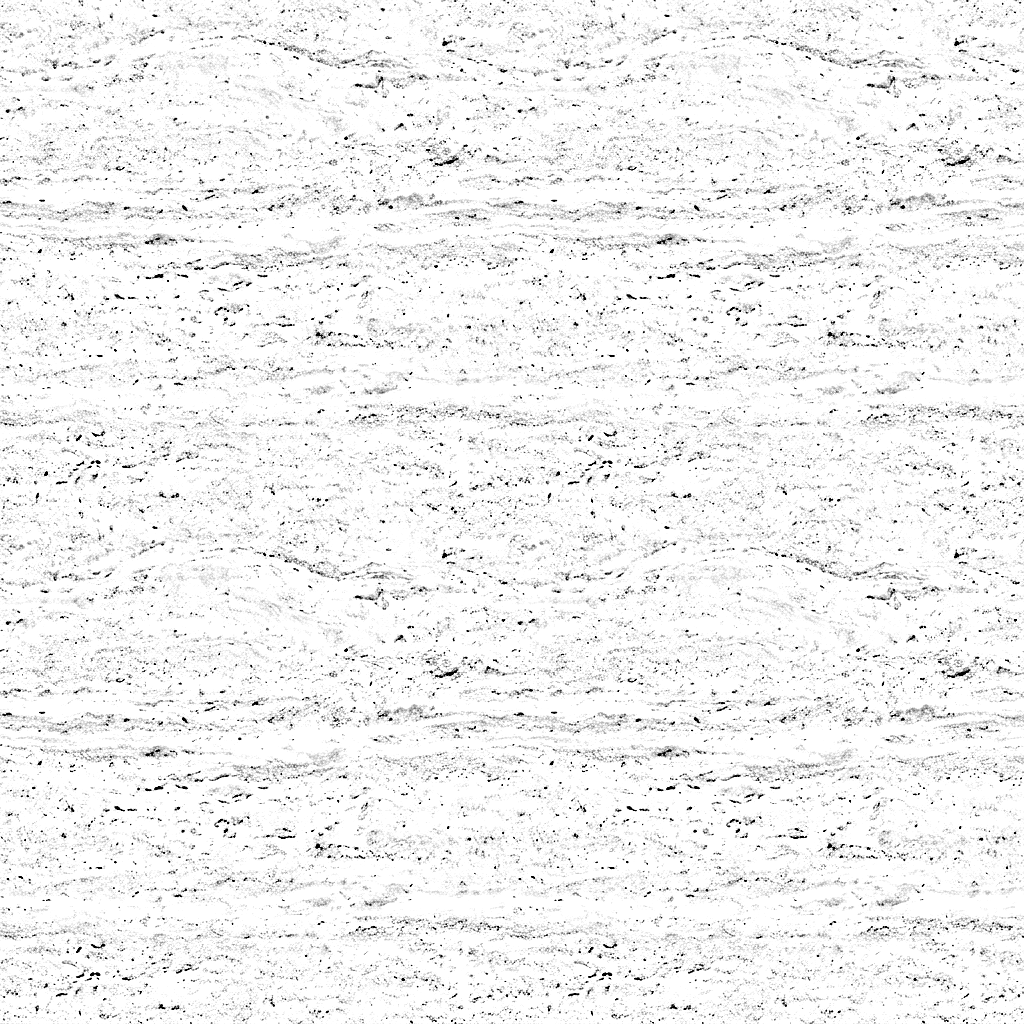
Export settings, kept visible
Seam blending was off. The exported base color has the same decoded pixels as the source image. Normal, roughness, height and AO are browser-derived estimates.
- Normal
- OpenGL (+Y), strength 3
- Roughness control
- 0.65
- Height contrast
- 1
- AO strength
- 1
A saved blend width of 0.35 was inactive because blending was disabled. The ZIP includes the original settings README.
This is one recorded result, not a typical-quality benchmark or a promise that the same prompt will produce the same image. The maps do not measure physical material properties, include a metallic map, or configure your renderer. Inspect the repeat and test the files in your actual material setup.
File verification
The source matches the recorded SHA-256 checksum. The downloadable ZIP is an unchanged copy of this workflow’s export.
- Source SHA-256
99baf2abb5d54a6ed226d04287a28b87da21aaef71da6e3c2c42cd8652a67d96- ZIP SHA-256
b75d3319ce2e468968b49fbcbbcc84ec53069e15f0c44340d9b7eda718388d8d
Sources and further reading
Try the workflow with your own image: Build a set of texture maps →